Camera navigation
Orbit Jack
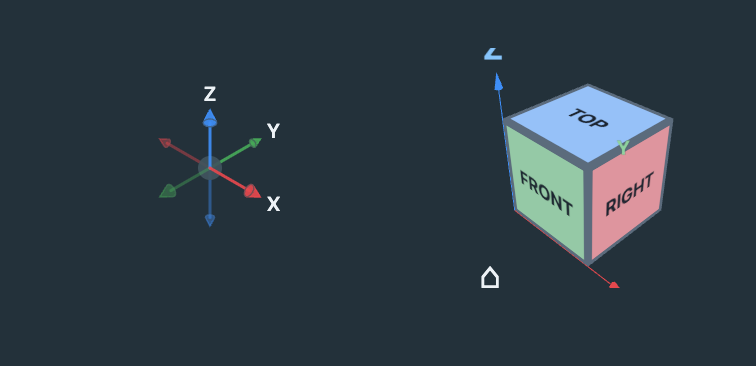
Drag the six-arm Orbit Jack to rotate the camera around the current orbit center. X is red, Y is green and Z is blue.
Choose a view
Hover over the Orbit Jack or focus it with the keyboard. The jack gives way to a pale, solid box. Its colored sides show the orientation of the coordinate planes. The X, Y and Z lines start at the lower-front-left corner and turn with the camera.
How hidden targets work
The Orbit Jack projects 26 hidden targets from its own coordinate system into the viewport. Clicking or tapping near a target sets the camera direction. The box is drawn separately as a visual reference for the planes. Its surfaces do not receive selections. A tap between targets leaves the view in place.
Where to tap
For a straight-on view, tap the hidden square target near the center of a colored side. For a two-axis view, tap near the midpoint of an edge. For a three-axis view, tap near a corner. Rotate the view to bring another direction into sight.
Return to the home view
Choose the house symbol at the lower left. With the Orbit Jack focused, the arrow keys rotate the view and the Home key restores the workspace’s home view.